
Jobs to Inbox is a participant in the Amazon Services LLC Associates Program. When you buy through links on this page we may earn a commission, at no extra cost to you. We choose every product ourselves and we are never paid to include one. How we pick.
Work From Home Essentials and Desk Gear
A Complete Home Office Setup Under $200: 10 Items
This complete home office setup guide shows you ten essential items to create a comfortable, professional workspace for under two hundred dollars.
The quick answer
- Create an ergonomic workspace with a laptop stand, external keyboard, mouse, and seat cushion.
- Improve your professional presence with a headset, desk lamp, and webcam accessory.
- Organize and protect your gear with a cable tray and surge protector.
You landed the remote job, a huge accomplishment that promises flexibility and a better work-life balance. Then comes the slow realization that your kitchen table and dining chair are not going to work for forty hours a week. The initial excitement fades, replaced by the stress of unexpected costs. A proper home office setup feels like a luxury you cannot afford, with ergonomic chairs and standing desks costing hundreds or even thousands of dollars.
This guide is here to solve that exact problem. We will show you how to build a comfortable, productive, and professional remote workspace with ten essential items for a total cost under two hundred dollars. You do not need a massive budget to create a space that supports your health and your career. We will focus on smart, affordable choices that make the biggest impact on your daily comfort and efficiency.
Our tested picks for an 8-hour day
The one I use — best overall
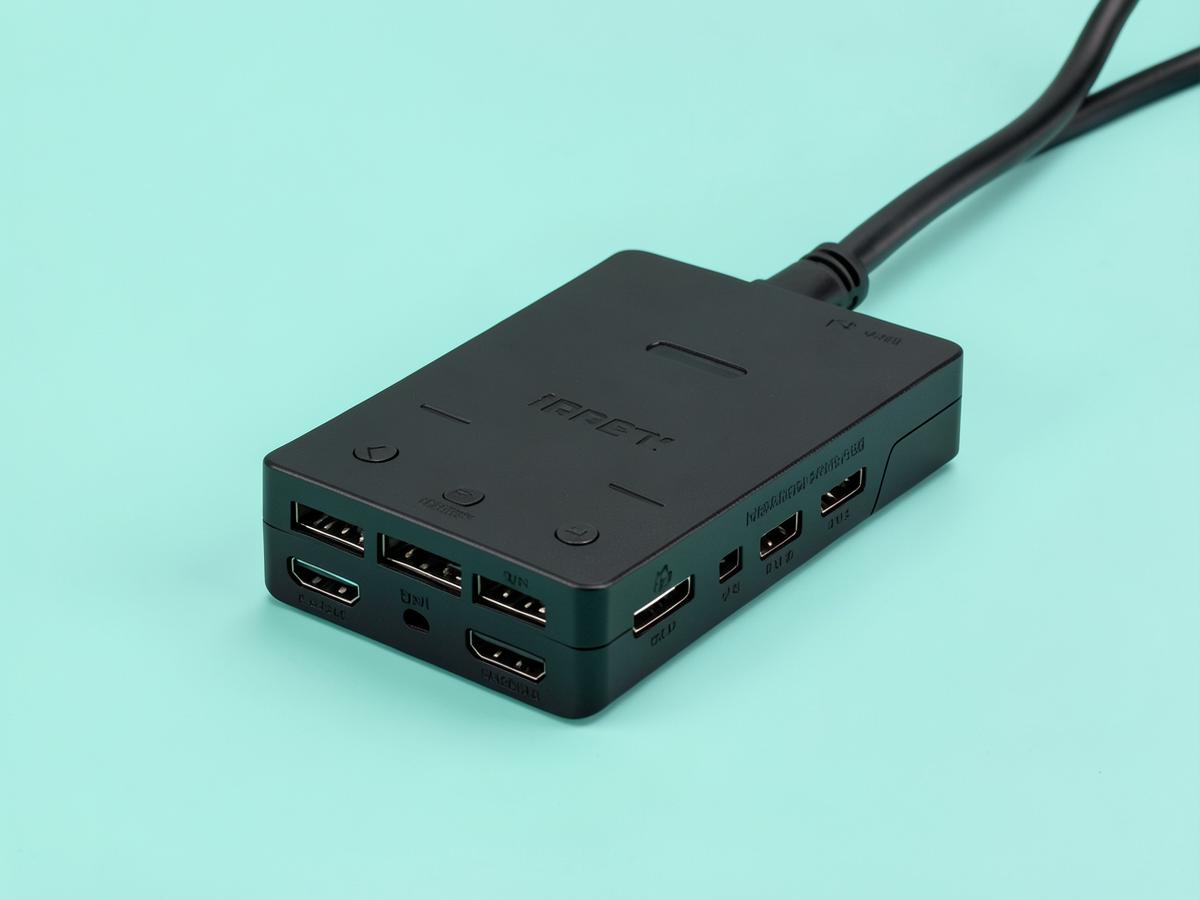
Anker Laptop Docking Station Dual Monitor 8-in-1
Two external screens, one cable, and a morning routine you stop noticing.
Months in, the thing I notice about this dock is that I do not notice it. One USB-C cable goes into the laptop and two monitors, a keyboard, a mouse, a headset and the charger all come alive at once. It handles two screens over the twin HDMI outputs, passes power through to the laptop so there is no separate charger to fumble for, and includes ethernet — which matters more than people expect, because a wired connection during a long call is noticeably steadier than a flat's wireless. It runs warm after a full day, which is normal for the class, and the fixed cable is short enough that the dock has to sit near the laptop rather than tucked away behind the desk. Neither is a real complaint. What matters is that it has never dropped a screen mid-call, which is the failure mode that makes cheap docks worthless. If you work from a laptop with two monitors in front of you, this is the purchase that removes a small irritation from every single working day, and it costs less than a decent office chair cushion arrangement.
Best overall
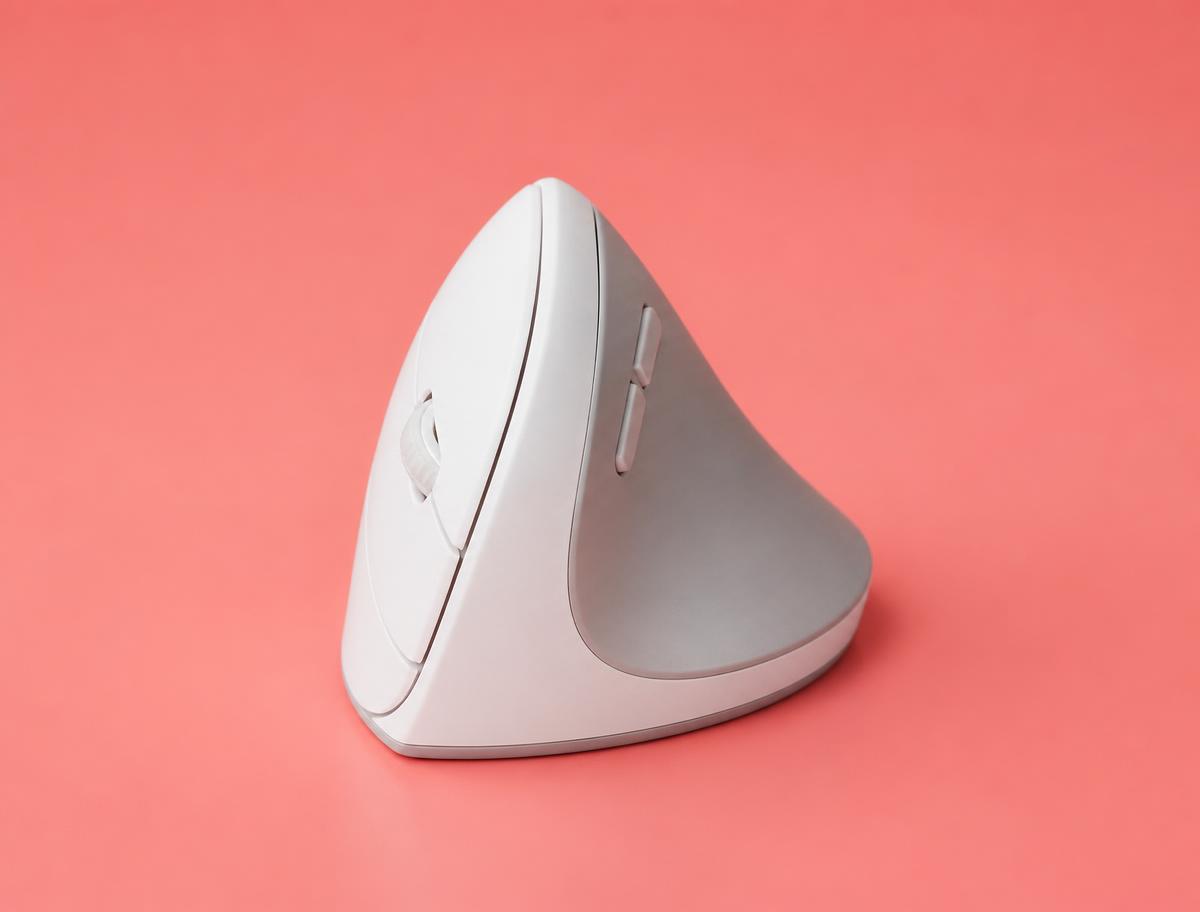
Logitech Lift Vertical Ergonomic Mouse
Most people, and especially anyone with small to medium hands.
A 57-degree vertical angle in a body small enough that it does not swamp an average hand, which is the flaw in most vertical mice. The clicks are quiet enough to go unnoticed on a live call, which matters more than it sounds when your headset sits four inches from the mouse. It pairs to three machines and switches between them with a button underneath — useful when a work laptop and a personal one share the same desk.

Best overall
Logitech Zone Vibe 100
Anyone on calls three to six hours a day who wants to stop noticing the headset.
At roughly 185 grams this is the lightest thing here that still has a real boom-free mic array, and that weight is the whole argument. The mic is not the best in this list, but it is clearly good enough for calls, and the trade is a headset you genuinely forget you are wearing by hour four. Cushions are memory foam and replaceable.
The Ergonomic Foundation of Your Home Office Setup
Your body is your most important tool, and working from home can take a toll if you are not set up correctly. The aches and pains from hunching over a laptop are real, leading to back pain, neck strain, and wrist discomfort. These foundational items address the core ergonomics of your workspace, preventing long-term issues without requiring a significant investment. They transform any table or desk into a more body-friendly station.
1. Laptop Stand
Hunching over your laptop screen for hours is a direct path to neck and shoulder pain. The screen is too low, forcing your head and neck into an unnatural forward position. This posture, often called "tech neck," can lead to chronic pain, headaches, and even long-term spinal issues. You might find yourself constantly shifting, trying to find a comfortable position that simply does not exist with a laptop flat on a desk.
A laptop stand is the single most effective and affordable solution to this problem. By elevating your laptop, it raises the screen to eye level. This simple change allows you to sit up straight, aligning your spine, neck, and head in a neutral, comfortable posture. Your body will thank you after the first full day of work. The difference in physical strain is immediate and profound, allowing you to focus on your tasks instead of your growing discomfort.
There are several types of laptop stands to consider. The most common and budget-friendly are fixed-height stands, often made of metal mesh or aluminum. They are sturdy and provide excellent ventilation to keep your laptop from overheating. Adjustable stands offer more flexibility, allowing you to fine-tune the screen height and angle perfectly for your body and chair height. For those who may need to move their setup, foldable stands made of lightweight aluminum or durable plastic are incredibly portable.
When choosing, look for a stand with non-slip silicone or rubber pads on the surface and base to hold your laptop securely and prevent the stand from sliding on your desk. Ensure it is rated for the size and weight of your laptop. Ventilation is also key; models with cutouts or mesh construction are superior to solid ones. A simple, sturdy, fixed-height aluminum stand provides all the ergonomic benefits you need. Typically, you can find a quality laptop stand for a typical price between $15 and $25. Prices change daily, but this item offers one of the highest returns on investment for your physical well-being.
2. External Keyboard
Once you elevate your laptop on a stand, you can no longer use its built-in keyboard and trackpad comfortably. Attempting to do so would put your arms and wrists at a painful, elevated angle. This is where an external keyboard becomes an ergonomic necessity, not a luxury. Using your laptop’s keyboard for extended periods can lead to wrist strain and carpal tunnel-like symptoms because of the cramped layout and lack of support.
An external keyboard allows your hands and wrists to rest in a neutral, natural position on the desk. This separation of screen and keyboard is the cornerstone of a proper ergonomic setup. It lets you place the keyboard directly in front of you at a comfortable elbow height, reducing tension in your arms, shoulders, and back. You will type faster, more accurately, and with significantly less physical strain throughout the day.
For a budget-friendly setup, a wired keyboard is your best option. It eliminates the need for batteries and the potential for connectivity issues, offering reliable, plug-and-play simplicity. You can find both full-size and "tenkeyless" (TKL) models. A full-size keyboard includes the number pad on the right, which is essential for data entry or finance roles. A TKL keyboard omits the number pad, resulting in a more compact footprint that allows your mouse to be closer to your body, a feature some find more ergonomic.
Most affordable keyboards use a membrane mechanism, where a rubber or silicone layer under the keys registers a keystroke. These are quiet, lightweight, and perfectly suitable for a professional environment. Look for a model with a standard layout to avoid a learning curve. Some even have small feet to adjust the typing angle, though typing on a flat keyboard is often recommended to keep wrists straight. You can find a reliable wired membrane keyboard for a typical price of $15 to $30.
Essential Peripherals for Daily Comfort
Beyond the core ergonomics of your screen and keyboard, a few key accessories directly impact your daily comfort and efficiency. Using a laptop trackpad all day is imprecise and can cause hand cramps, while sitting in a standard chair can lead to back pain and fatigue. These next items address those specific pain points directly.
3. Ergonomic Mouse
Relying solely on a laptop’s trackpad for a full-time job is a recipe for frustration and hand strain. Tasks that require precision, like selecting text, navigating spreadsheets, or using design software, become slow and cumbersome. The repetitive finger movements and unnatural hand posture can lead to cramping in your fingers and pain in your wrist and forearm.
An external mouse provides the speed, precision, and comfort a trackpad lacks. It allows your entire arm to make movements, rather than just your fingers, which is a more natural and less strenuous way to work. The right mouse can make your workflow feel smoother and more intuitive, saving you time and reducing physical stress. This is particularly important for roles that are click-heavy or require navigating complex interfaces.
For this budget, a wired optical mouse is the most practical choice. It offers excellent tracking and responsiveness without the cost or battery management of a wireless model. The most important factor is shape and comfort. Look for a mouse that fits the size and shape of your hand. Many budget-friendly mice are "ambidextrous," meaning they have a symmetrical design suitable for left or right-handed users. Others are contoured specifically for the right hand, with a thumb rest for added support.
Some people find vertical mice to be exceptionally comfortable. These models position your hand in a "handshake" posture, which can alleviate pressure on the wrist's median nerve. While they can take a day or two to get used to, many users report a significant reduction in wrist pain. Whatever style you choose, ensure it feels good in your hand. A comfortable, reliable wired mouse typically costs between $10 and $20, making it a small price to pay for a huge improvement in daily usability.
4. Seat Cushion
You may not have the budget for a high-end ergonomic office chair, but you do not have to endure sitting on a hard dining chair for eight hours a day. An uncomfortable chair forces your body into poor posture, putting pressure on your tailbone, hips, and lower back. This can lead to nagging back pain, sciatica, and a constant feeling of fatigue that kills your focus and productivity.
A quality seat cushion is a transformative and affordable solution. It instantly upgrades almost any chair, providing the support and comfort your body needs. A good cushion distributes your weight more evenly, relieving pressure points and promoting better spinal alignment. It encourages you to sit back properly in your chair, supporting the natural curve of your lower back and preventing you from slouching forward.
The most effective and popular cushions are made from high-density memory foam. This material conforms to your unique shape, providing personalized support where you need it most. Many are ergonomically contoured, with a U-shaped cutout at the back to relieve direct pressure on your coccyx (tailbone). This feature is especially beneficial for anyone who experiences lower back pain after long periods of sitting. Some cushions also incorporate a layer of cooling gel to prevent heat buildup, enhancing comfort during long work sessions.
When selecting a cushion, look for one with a non-slip bottom to keep it from sliding around on your chair. A removable, machine-washable cover is also a crucial feature for hygiene. Pay attention to the dimensions to ensure it fits your chair properly. A good memory foam seat cushion can make an inexpensive chair feel much more luxurious and supportive. You can typically find a highly effective one for a typical price between $20 and $35.
Creating a Professional Remote Environment
Working from home requires more than just personal comfort. It also means creating an environment where you can communicate clearly and professionally with colleagues and clients. Poor lighting can make you look unprofessional on video calls, and background noise can be a major distraction for both you and your team. These items help you control your immediate environment.
5. Headset with Microphone
Using your laptop’s built-in microphone and speakers for meetings is a common mistake that can undermine your professionalism. The speakers can create an echo for others on the call, and the microphone often picks up every ambient sound in your room, from a barking dog to the hum of a refrigerator. This background noise is distracting and makes it difficult for your colleagues to hear you clearly.
A dedicated headset with a built-in microphone solves all of these problems. It ensures your voice comes through clearly and consistently, while the headphones isolate you from household distractions, allowing you to focus on the conversation. A quality microphone, especially one with noise-canceling features, will actively filter out background noise, presenting a much more polished and professional image to your team. This is non-negotiable for any role that involves frequent calls or virtual meetings.
For a budget-friendly home office setup, a wired headset is the most reliable option. It connects via a USB port or a standard 3.5mm audio jack, offering plug-and-play functionality without worrying about battery life or Bluetooth pairing issues. You have two main styles to choose from: on-ear and over-ear. On-ear headsets are lighter and more compact, resting on your ears. Over-ear headsets have larger cups that enclose your entire ear, offering better sound isolation and often more comfort for extended wear.
The most important feature to look for is the microphone quality. Seek out models that specify a "noise-canceling microphone." These use technology to focus on your voice and reduce ambient sounds. A boom microphone, which is on an adjustable arm that you can position close to your mouth, will almost always provide clearer audio than an in-line microphone built into the cord. You can find a dependable wired headset with a quality noise-canceling microphone for a typical price of $20 to $35.
6. Desk Lamp
Relying on overhead room lighting or a nearby window is often not enough for a productive workspace. Poor lighting can cause significant eye strain, leading to tired, dry eyes, headaches, and an overall feeling of fatigue. It can make it difficult to read documents or see your keyboard clearly, slowing you down. Furthermore, dim or poorly angled light creates unflattering shadows on video calls, making you appear tired or unprofessional.
A dedicated desk lamp gives you direct, focused light right where you need it. This task lighting reduces eye strain by creating a better contrast between your screen and the surrounding environment. It illuminates your physical workspace for note-taking or reviewing papers and provides essential fill light for video calls. By properly illuminating your face, a desk lamp instantly improves your video quality, helping you look more awake, engaged, and professional.
LED desk lamps are the best choice for a home office. They are incredibly energy-efficient, last for years without needing a bulb change, and produce very little heat. On a budget, you can find many excellent options. Look for a lamp with an adjustable or flexible neck or arm. This allows you to direct the light precisely where you need it, whether it is on your keyboard, a document, or angled to light your face for a call.
Many affordable LED lamps also offer features like adjustable brightness levels and color temperature modes. Being able to switch between a cool, energizing white light for focused work and a warmer, softer light for the end of the day can reduce eye fatigue and improve your work environment. A simple, flexible LED desk lamp is a small investment with a major impact on your comfort and professional appearance. These are typically available for a typical price between $15 and $25.
Staying Safe While Sourcing Your Setup
As you prepare for your new remote role and gather equipment, it is crucial to be aware of potential scams. Some fraudulent job offers are designed specifically to trick new hires into spending money. One common tactic involves the "equipment purchase" scam.
A fraudulent company might tell you that you are required to purchase your home office equipment from a specific, pre-approved vendor. They may send you a check for an amount that is significantly more than the cost of the equipment. They will instruct you to deposit the check, then immediately wire the difference or the cost of the equipment to their "vendor." The check will eventually bounce, but by then, the money you wired is gone forever, and you are responsible for covering the full amount of the bounced check with your bank.
Here are the red flags to watch for. Be extremely wary of any employer who insists you buy equipment from a single, unfamiliar online store. Legitimate companies will typically provide you with the equipment directly or give you a stipend to purchase it from any reputable retailer of your choice. Never accept a check and be asked to wire a portion of it back or to another party. This is a classic sign of a fraudulent transaction. Finally, if the job offer process felt too quick or too good to be true, and it is followed by an urgent request for you to spend money, it is likely a scam. Protect yourself by being skeptical of any job that requires you to pay for your own supplies through a specific, non-negotiable channel.
Organization and Protection on a Budget
A cluttered workspace can lead to a cluttered mind. Tangled cords are not just an eyesore; they can be a tripping hazard and make it difficult to plug and unplug devices. At the same time, your valuable electronics, like your company-provided or personal laptop, need protection from unexpected electrical issues. These final items bring order and safety to your setup.
7. Cable Management Tray
After setting up your laptop, stand, keyboard, mouse, and lamp, you will likely have a tangled mess of cables snaking across your desk and hanging down to the floor. This "cable spaghetti" looks unprofessional and chaotic, which can contribute to a feeling of mental clutter and stress. It makes cleaning your workspace difficult, and loose cables on the floor can easily be snagged by your feet or a vacuum cleaner, potentially damaging your equipment or pulling it off the desk.
A cable management tray is a simple but brilliant solution. It is a small basket or channel that mounts directly to the underside of your desk. This creates a hidden shelf where you can tuck away your power strip, power bricks, and all the excess cable length. Your workspace is instantly transformed from chaotic to clean and organized. The visual peace it creates is surprisingly impactful, allowing for better focus.
There are a few common types of under-desk trays. Metal mesh or wire trays are very popular because they are sturdy, provide great ventilation for power adapters that can get warm, and make it easy to weave cables through the openings. Some are designed to be screwed directly into the bottom of a wooden desk for maximum stability. For those who do not want to drill holes, there are clamp-on versions that attach to the back edge of your desk. Another option is a fabric or neoprene sleeve that bundles all your cables together into one tidy tube.
For a simple and secure solution, a screw-in wire tray is often the most effective and affordable. Installation is usually straightforward with just a few small screws. Before buying, measure the size of your largest power brick and your surge protector to ensure they will fit inside the tray. Getting your cables up off the floor and out of sight is a satisfying final touch to a professional setup. An under-desk cable tray typically has a price between $15 and $20.
8. Surge Protector
You may have a simple power strip at home that gives you extra outlets, but it is crucial to understand that it is not the same thing as a surge protector. A basic power strip offers no protection against electrical surges, which are sudden spikes in voltage. These surges can be caused by everything from lightning strikes to fluctuations from the power grid or high-powered appliances cycling on and off in your home.
A power surge can permanently damage or destroy sensitive electronics like your laptop, monitor, and other peripherals. The risk might seem small, but the cost of replacing your work computer is enormous compared to the small investment in proper protection. A surge protector acts as a gatekeeper, diverting any excess voltage away from your connected devices and absorbing the impact. It is essential insurance for your expensive and critical work equipment.
When shopping for a surge protector, the most important specification to look for is the joule rating. This number indicates how much energy the surge protector can absorb before it fails. For a home office setup, a higher joule rating is always better. Look for a model with a rating of at least 600 to 1,000 joules. Many will also have an indicator light that confirms it is actively protecting your devices.
Consider the number and spacing of the outlets. Count how many devices you need to plug in: laptop, lamp, phone charger, and potentially a monitor in the future. Choose a surge protector with at least six to eight outlets to give yourself some flexibility. Look for models with a few widely spaced outlets to accommodate bulky power adapters without blocking adjacent sockets. A long cord also provides more flexibility in positioning it within your cable management tray. A reliable surge protector with a sufficient joule rating typically costs between $10 and $20.
Final Touches for Comfort and Professionalism
With the core components in place, a couple of final items can enhance your daily work life. One addresses the very real ergonomic chain reaction that starts with your feet, while the other offers a choice between privacy and an even more polished on-camera appearance. These small additions complete your thoughtful and affordable remote workspace.
9. Footrest
When you sit at a desk, proper ergonomics extend all the way to the floor. If your chair is at the correct height for your arms and keyboard but your feet do not rest flat on the floor, you create a new set of problems. Dangling feet can cause poor circulation and put pressure on the back of your thighs. Many people compensate by perching on the edge of their seat, which eliminates back support and leads to slouching.
A footrest solves this problem by providing a stable, supportive surface for your feet. It completes the ergonomic chain, ensuring your feet are supported, which allows your knees to be at a comfortable ninety-degree angle. This, in turn, helps your hips and spine to fall into a healthier, more supported posture. It might seem like a minor detail, but proper foot support can significantly reduce lower back strain and fatigue during the workday.
There are several styles of footrests available at a budget-friendly price point. The simplest is a fixed-angle footrest, which provides a static, slanted surface. Many people prefer an adjustable or rocking footrest. These allow you to change the angle to suit your preference and encourage small movements and ankle flexion throughout the day, which can help with circulation. Some even have textured or bumpy surfaces that provide a gentle massage for the soles of your feet.
When choosing one, consider a model with a non-slip surface to keep your feet in place. Material is another consideration; they are commonly made from durable, high-impact plastic. Size is also important, so ensure it is wide enough to let you place your feet comfortably apart. You do not need a fancy, feature-rich model. A simple, sturdy footrest that elevates your feet to the proper height is all that is required to improve your posture and comfort. These typically have a typical price between $15 and $25.
10. Webcam Cover or Light
Your professional presence on video calls and your digital privacy are both important considerations in a remote work environment. This final item offers a choice between a simple privacy tool and a tool to enhance your video quality, both of which are very affordable.
First, the webcam cover. The camera on your work or personal laptop presents a potential privacy risk. While unlikely, the possibility of a camera being activated without your knowledge is a valid concern for many people. A physical webcam cover is the simplest and most foolproof way to ensure your privacy. It is a tiny, slidable plastic piece that adheres to the bezel of your laptop, directly over the camera lens. When you are not in a meeting, you simply slide the cover closed. It provides absolute peace of mind that no one can see you unless you want them to. These are incredibly inexpensive, typically costing between $5 and $10 for a multi-pack.
Alternatively, you can opt for a webcam light. As mentioned with the desk lamp, good lighting is critical for looking professional on video. If your workspace is still a bit dark even with a lamp, a dedicated webcam light can be a game-changer. These are typically small ring lights that clip directly onto the top of your laptop or monitor. They cast an even, flattering light directly onto your face, eliminating shadows and dramatically improving the clarity and quality of your video feed. They are usually USB-powered and have adjustable brightness levels. For a small additional cost over a webcam cover, a clip-on light can significantly boost your on-camera presence. You can typically find a good one for a price between $10 and $20.
Tying It All Together: Your Sub-$200 Total
You have seen how each of these ten items addresses a specific frustration or need in a remote work environment. Now, let’s see how the costs add up, keeping in mind that prices change daily and these are typical ranges. We will use a realistic middle-ground price for each item to demonstrate how you can easily stay under the two-hundred-dollar mark.
- Laptop Stand: $20
- External Keyboard: $20
- Ergonomic Mouse: $15
- Seat Cushion: $25
- Headset with Microphone: $25
- Desk Lamp: $20
- Cable Management Tray: $15
- Surge Protector: $15
- Footrest: $20
- Webcam Cover: $5
Total Estimated Cost: $180
As you can see, it is entirely possible to assemble a complete, comfortable, and professional home office setup for well under two hundred dollars. By focusing on these ten high-impact items, you are investing in your health, comfort, and productivity for your new remote career without breaking the bank.
What to Do Today
You do not need to feel overwhelmed by the cost of setting up your workspace. You can start today with a few simple, concrete steps.
First, take inventory of what you already have. Maybe you have an old keyboard or a spare lamp in another room that you can repurpose. Identify the biggest source of your physical discomfort. Is it neck pain from looking down at your laptop, or back pain from your chair?
Next, use the list above to prioritize your purchases. Start with the one or two items that will solve your most pressing problem. A laptop stand and an external keyboard are often the best starting point as they form the foundation of an ergonomic setup.
Finally, make a plan to acquire one or two items a week. You do not have to buy everything at once. Spacing out your purchases makes the investment feel more manageable. By starting small, you can build your ideal home office setup over time and begin your remote job journey feeling comfortable, confident, and prepared for success.
Pay figures are typical ranges, not guarantees. See today's live jobs.