Jobs to Inbox is a participant in the Amazon Services LLC Associates Program. When you buy through links on this page we may earn a commission, at no extra cost to you. We choose every product ourselves and we are never paid to include one. How we pick.
Review
One Cable, Two Screens: The Dock That Fixed My Morning
A long look at the Anker 8-in-1 dual-monitor dock after months of daily use, plus five cheaper ways to get a laptop up to eye level and onto two screens.
Two external screens, one cable, and a morning routine you stop noticing.
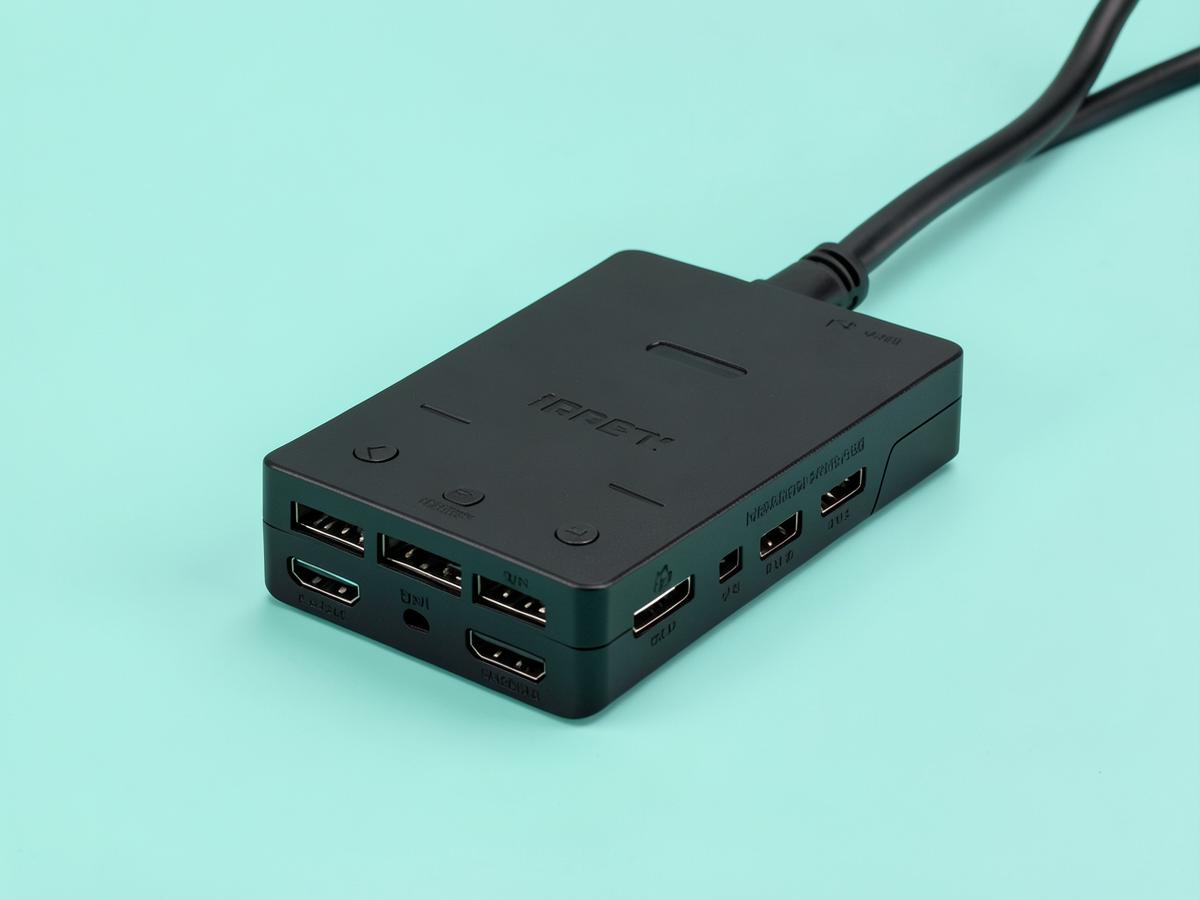
Months in, the thing I notice about this dock is that I do not notice it. One USB-C cable goes into the laptop and two monitors, a keyboard, a mouse, a headset and the charger all come alive at once. It handles two screens over the twin HDMI outputs, passes power through to the laptop so there is no separate charger to fumble for, and includes ethernet — which matters more than people expect, because a wired connection during a long call is noticeably steadier than a flat's wireless. It runs warm after a full day, which is normal for the class, and the fixed cable is short enough that the dock has to sit near the laptop rather than tucked away behind the desk. Neither is a real complaint. What matters is that it has never dropped a screen mid-call, which is the failure mode that makes cheap docks worthless. If you work from a laptop with two monitors in front of you, this is the purchase that removes a small irritation from every single working day, and it costs less than a decent office chair cushion arrangement.
Ports
8-in-1
Screens
Two, HDMI
Power
Pass-through
Network
Ethernet
What's good
Two external screens plus everything else from one cable
Passes charge through, so no separate power brick
Wired ethernet steadies long calls
Never dropped a display in months of daily use
What's not
Runs warm after a full working day
Short fixed cable keeps it out on the desk
There is a small daily indignity in laptop-based remote work that nobody warns you about. Every morning you sit down and plug in: power, monitor, second monitor, keyboard, mouse, headset, sometimes an ethernet cable. Every evening you unplug the lot. It takes ninety seconds each way, it involves feeling around behind a desk, and over a year it adds up to something like ten hours of your life spent handling cables.
A docking station collapses all of that into one connector. The laptop gets a single cable, that cable carries the screens, the peripherals, the network and the charge, and the morning routine becomes plugging in one thing. It is not an exciting purchase and it is one of the few pieces of desk equipment that changes something you do every single day.
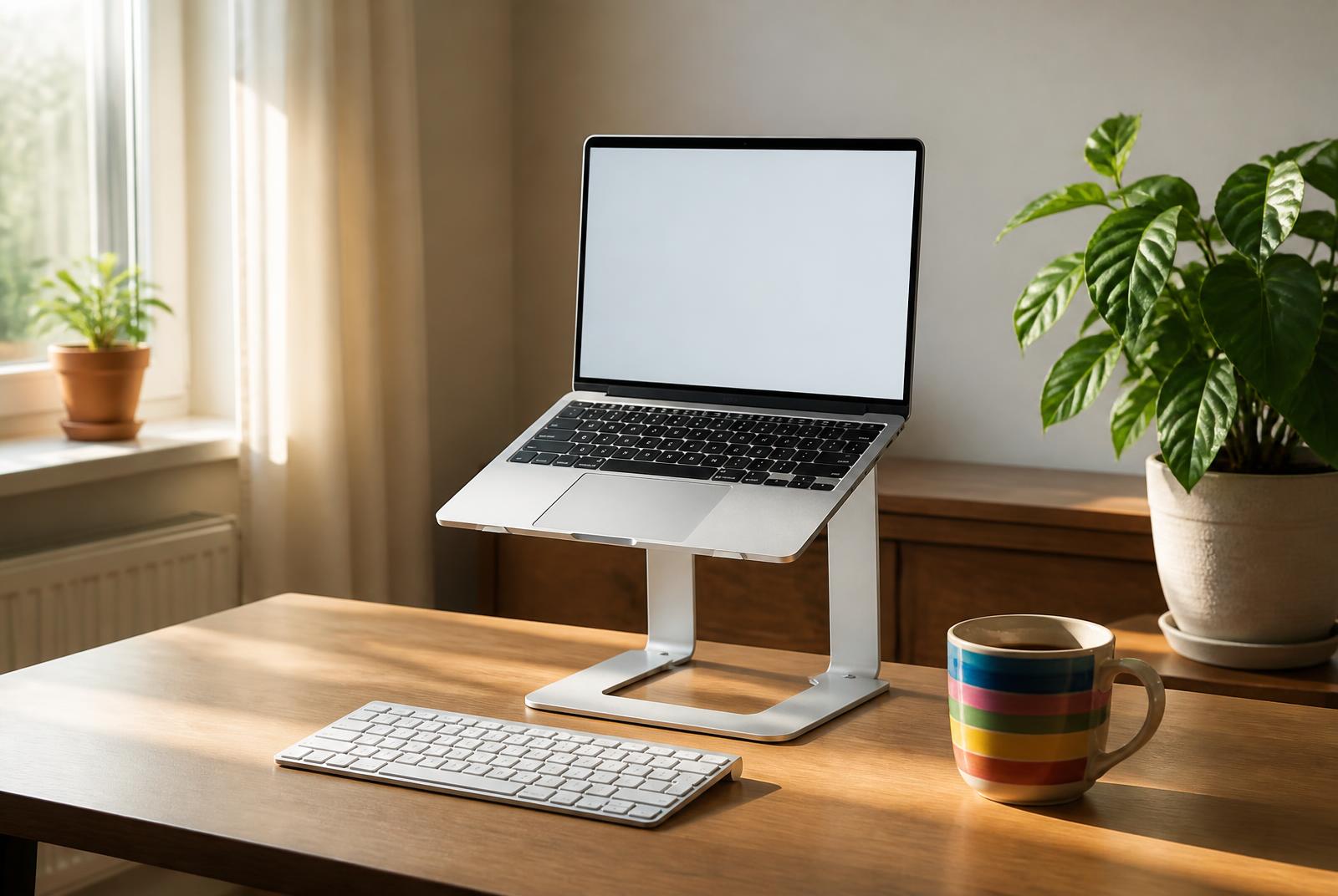
The other half of this page is height. A laptop screen sits about a foot below where your eyes want it, which is why laptop-only workers get neck ache that desktop workers do not. A stand fixes that for very little money, but it also puts the built-in keyboard at an unusable angle, so a stand always means buying an external keyboard too. That is worth knowing before you order.
What follows is a proper review of the dock I have been using daily, then five alternatives — a cheaper dual-screen dock, a simple hub, two laptop stands and a vertical holder — covering the other ways people actually solve this. Everything is affordable, and the most expensive item here still costs less than a single monitor.
The Anker 8-in-1 is the one to buy if you want two external screens from one cable and would rather never think about it again. If you only need one screen, the UGREEN 5-in-1 hub does the job for a fraction of the price. And if your laptop is your only display, a stand plus an external keyboard is the cheapest neck fix there is.
Dock, hub or adapter — the difference in one paragraph each
An adapter is a single-purpose plug: USB-C in, HDMI out, nothing else. It costs almost nothing and is the right answer if the only thing you ever connect is one monitor and your laptop has plenty of its own ports for everything else. Keep one in a bag for meeting rooms.
A hub adds a handful of ports and usually one video output, and passes power through so your laptop charges over the same cable. This is what most single-monitor home setups actually need, and the gap in price between a hub and a full dock is large enough that buying the dock unnecessarily is a genuine waste.
A docking station drives two or more screens, has enough sockets for every peripheral you own, and often includes ethernet. It is the right buy when you have two monitors, or when the count of things you plug in each morning has crept past four. Anything that says dual monitor and costs almost nothing usually mirrors the same picture to both screens rather than extending across them — check that specifically before buying.
The two-screen problem nobody mentions
Driving two independent displays over a single USB-C cable relies on a feature your laptop either has or does not, and the listing for the dock cannot tell you which. Many Windows laptops support it natively. Some do not, and use a compression technology instead, which the dock has to match. Apple's own base-model laptops historically supported only one external display without extra help, which catches a lot of people out.
So before buying a dual-monitor dock, look up your specific laptop model and the phrase two external displays. Five minutes there saves a return. If your machine only supports one, a dock will still work — you simply get one screen and a lot of ports, which is an expensive way to buy a hub.
The other thing to check is refresh rate. Plenty of budget docks drive two screens only at 30Hz, which makes the mouse pointer look like it is stuttering and gives some people a headache within an hour. Look for 60Hz on both outputs and treat anything vaguer than that as a warning.
Why a stand always means buying a keyboard
The purpose of raising a laptop is to bring the screen up to eye level so your neck stops bending forward for eight hours a day. The consequence is that the built-in keyboard rises with it, to a height where typing means lifting your shoulders. That posture is worse for you than the one you were trying to fix.
So a stand is always a two-item purchase: the stand and an external keyboard, plus a mouse if you use the trackpad heavily. The total is still very little, and it converts a laptop into something close to a proper desktop setup. Skipping the keyboard is the single most common mistake here, and it makes the stand actively harmful.
If the budget genuinely only stretches to one item this month, buy the keyboard and mouse first and put the laptop on a stack of books. Books are free, they are perfectly stable, and nobody has ever had their neck ache from an unattractive riser.
Setting the whole thing up once, properly
Get the heights right before you tidy anything. The top of each screen should sit at or just below eye level, and the keyboard should be low enough that your forearms are level with the floor. Those two numbers are usually about a foot apart, which is exactly why the laptop needs to go up and the keyboard needs to stay down.
With two monitors, put the one you use most directly in front of you rather than centring the gap between them. Splitting the difference means your neck spends the whole day turned slightly to one side, and a small constant rotation is more tiring than an occasional large one. The secondary screen goes to whichever side you turn to more comfortably.
Then run the cables once and cable-tie them. A dock's whole benefit is that the mess behind the desk becomes permanent and invisible instead of being rebuilt every morning. Ten minutes with a handful of ties and an under-desk tray, and the only cable you ever touch again is the one that goes into the laptop.
What else we would buy
Cheaper dual-screen option
UGREEN USB C Docking Station Dual Monitor 7-in-1
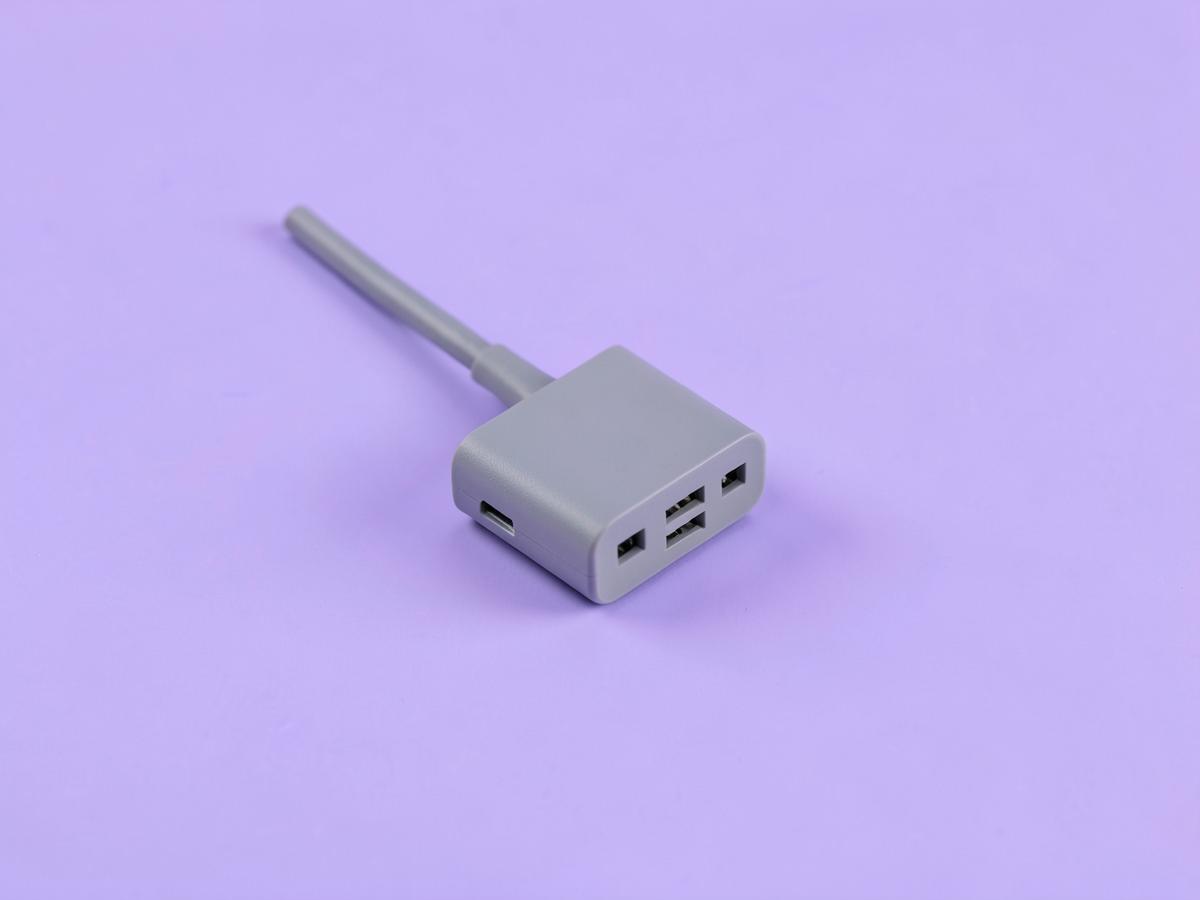
An aluminium-bodied seven-port dock that drives two HDMI screens and costs meaningfully less than the Anker. The metal shell spreads heat better than the plastic ones, so it runs cooler over a long day. What you give up is the ethernet socket and a little of the port count, and if your home connection is solid that trade is entirely reasonable. Setup is the same one-cable arrangement, and in use the two feel very similar.
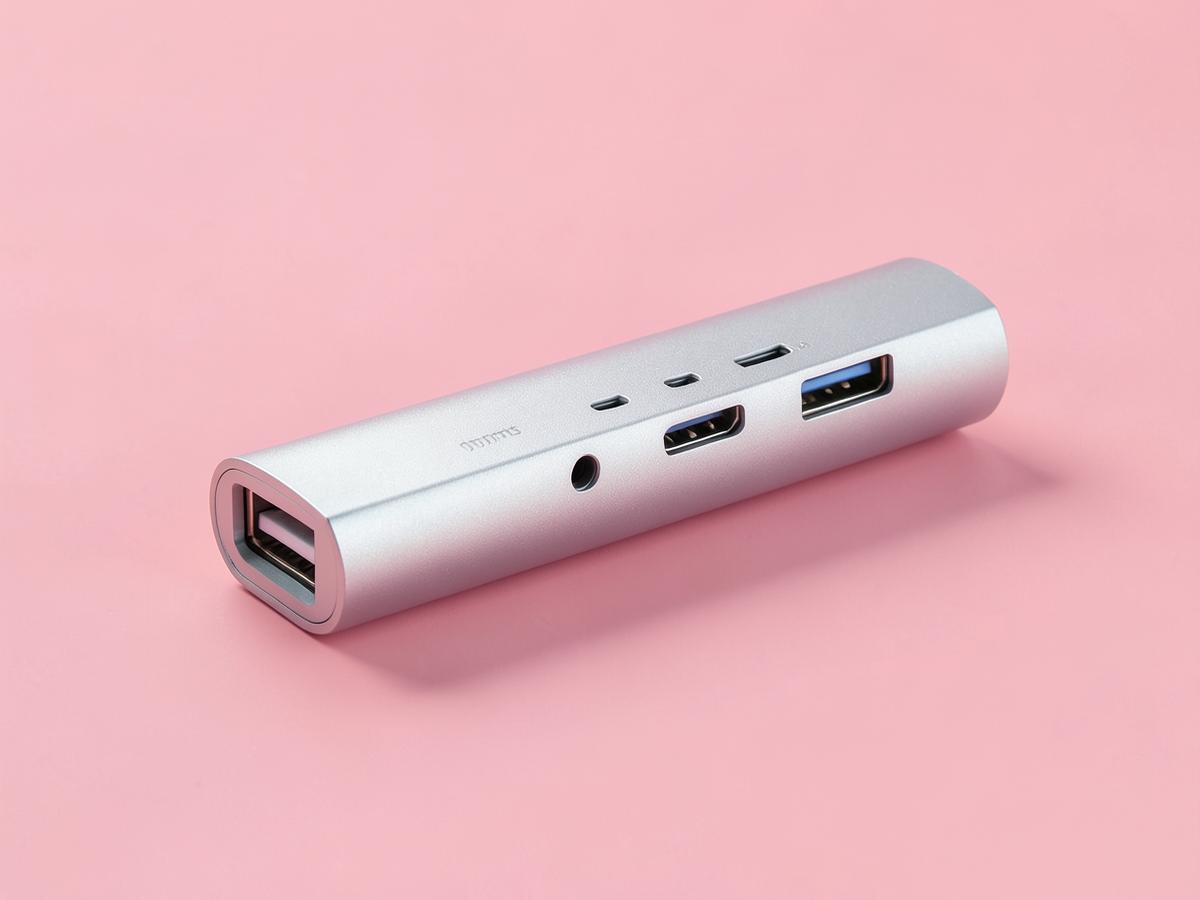
Most people do not need a dock, they need a hub, and this is the one to get. Single HDMI, three USB-A sockets and enough power delivery to keep a laptop charged, in a body small enough to live in a bag. It costs a small fraction of the dual-screen docks, and if your setup is a laptop plus one monitor it does exactly the same job for you that the Anker does for a two-screen desk. Buy the dock only when you genuinely have a second screen.
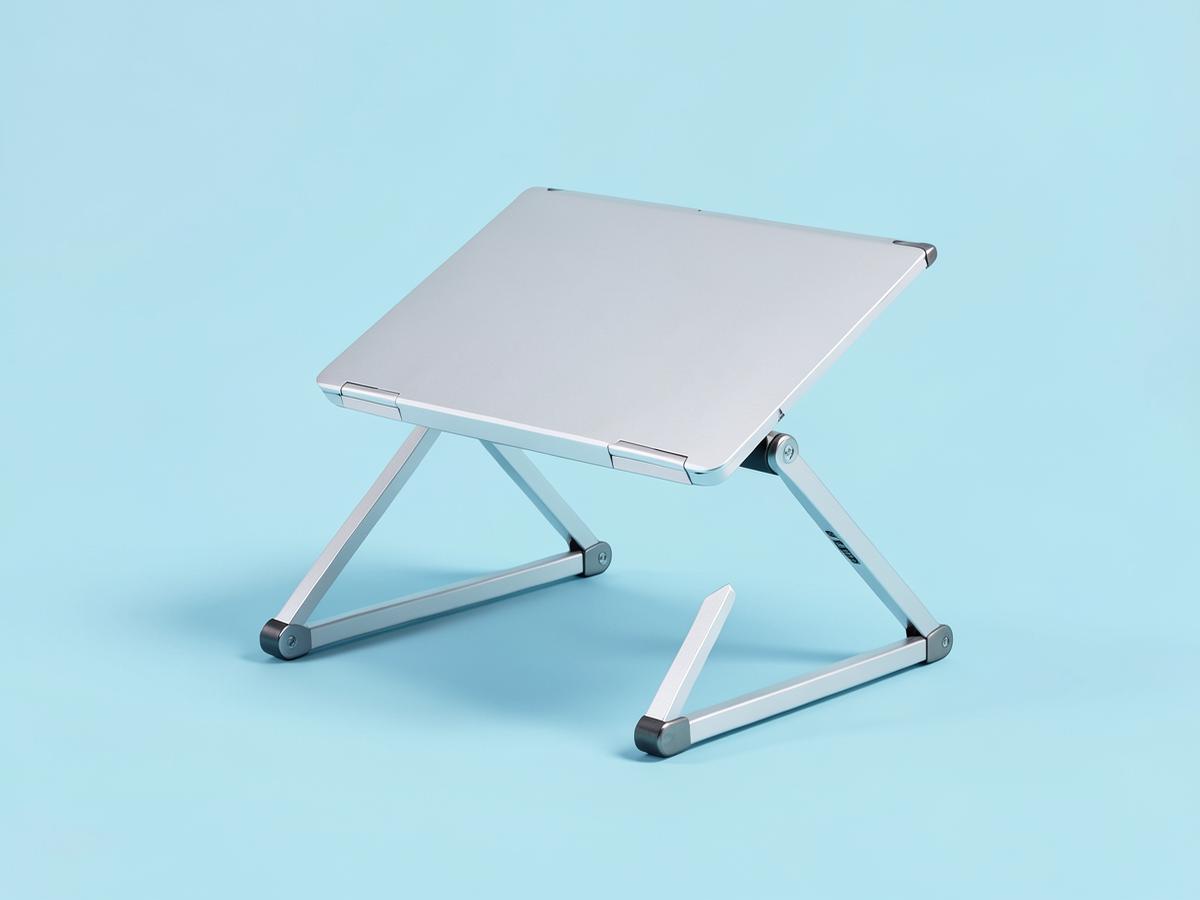
Solid aluminium, no folding joints to work loose, and stable enough to take a large laptop without a hint of movement when you type on the external keyboard in front of it. The open frame lets air move underneath, which keeps the machine from throttling on a long call — a real problem with laptops sitting flat on a desk. It does not fold, so it lives on the desk permanently, and it puts the screen at a sensible height rather than the token two inches some risers manage.
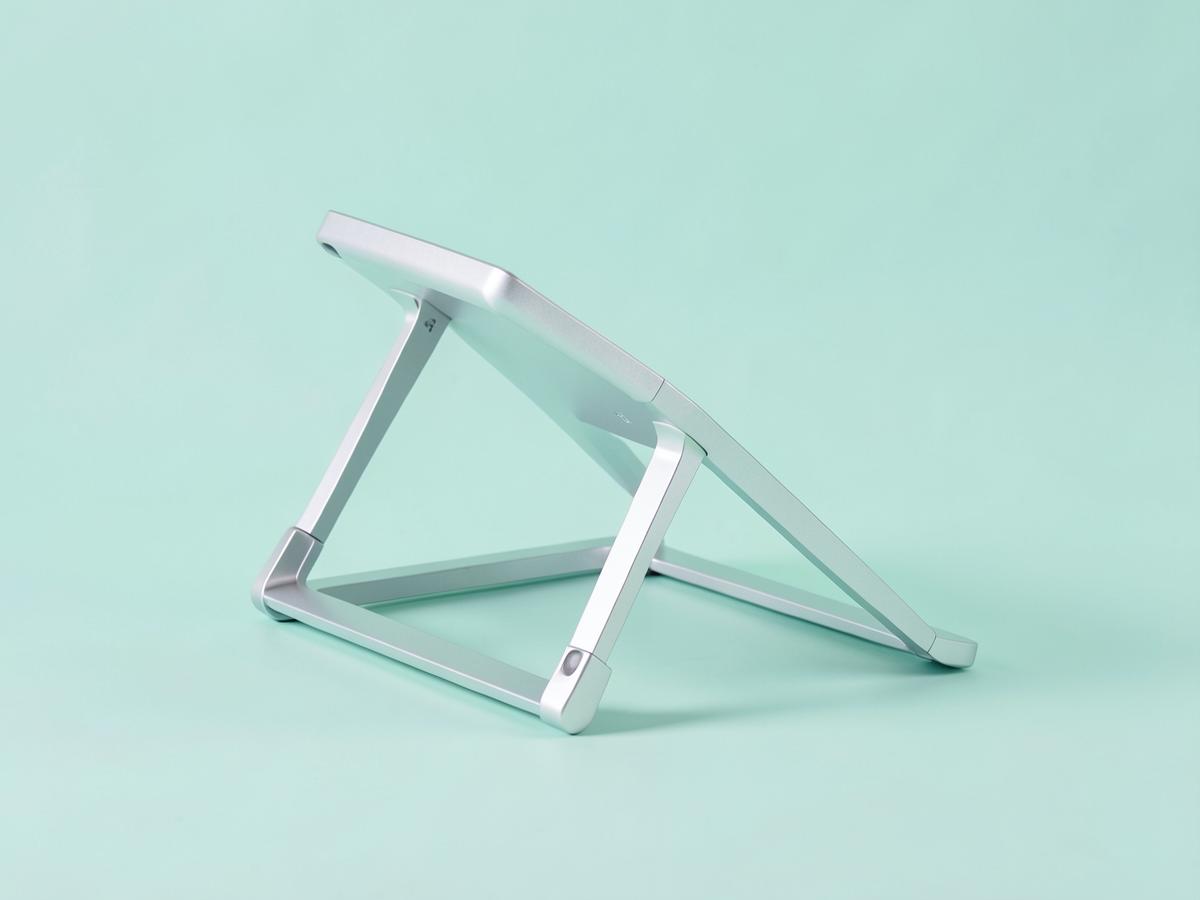
The same idea in a folding, adjustable form, which suits anyone whose desk is also a dining table. The height and angle adjust across a wide range, so it works for a tall person at a low table and for a short person at a high one, and it collapses flat enough to slide behind a bookshelf at the end of the day. There is a little flex if you type hard on the laptop's own keyboard, but you should not be doing that on a stand anyway.
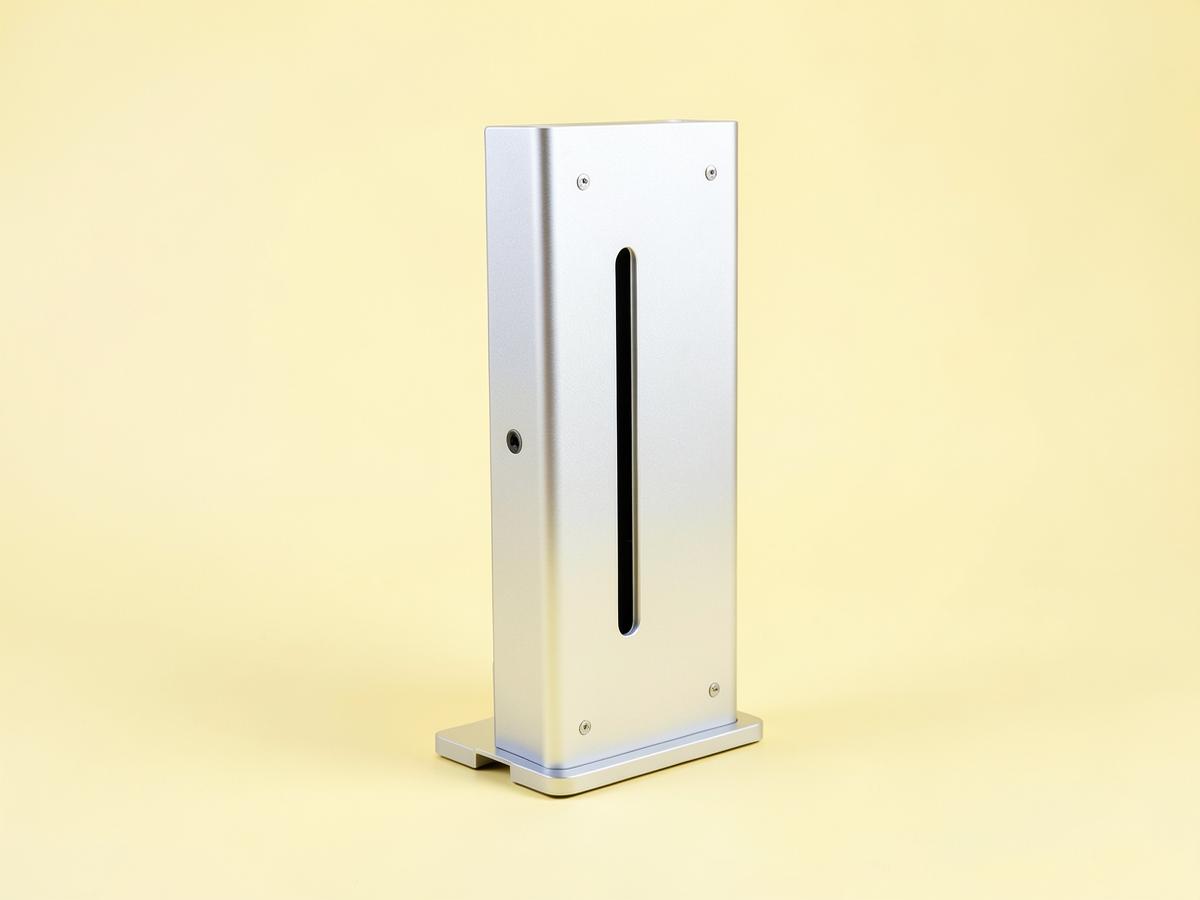
If your laptop stays shut and everything happens on the external monitors, a vertical holder puts it on its edge and gives you back a whole laptop's worth of desk. The slot width adjusts, so it fits a slim machine or a thick one, and the rubber lining means no scratches. Worth knowing: a closed laptop runs hotter than an open one because the keyboard surface is part of how it sheds heat, so this suits light workloads better than heavy ones. On a bedroom-corner desk, the space it frees is genuinely useful.
Used daily for months, not tested for an afternoon
Two screens driven at once and checked for dropouts and flicker
Charging watched under load to see whether the laptop actually keeps up
Heat measured after a full working day, not after ten minutes
Stands loaded with a heavy laptop and pushed to see what wobbles
Everything here is affordable next to the laptop it plugs into
Questions we get
Will a dock charge my laptop?
Most do, through the same cable that carries the video. Check the wattage against what your laptop's own charger supplies — a power-hungry machine on an underpowered dock will charge slowly or drain while you work.
Do I need a dock or just a hub?
One external screen means a hub. Two screens, or more than about four things plugged in every morning, means a dock. Buying the dock for a single-monitor desk is money spent on ports you will not use.
Why is my second screen mirroring instead of extending?
Usually a laptop limitation rather than a dock fault. Check whether your model supports two external displays, then check your display settings for the extend option.
Is it bad to run a laptop closed?
It runs hotter, because the keyboard surface helps shed heat. It is fine for calls, documents and browsing. For sustained heavy work, leave it open on a stand instead.
Do I really need an external keyboard with a stand?
Yes. Raising the laptop raises its keyboard to shoulder height, which trades a neck problem for a shoulder one. Budget for the keyboard at the same time as the stand.
Before you buy
Count the things you plug in tomorrow morning. If it is one or two, buy the hub and a stand and you are done for under fifty dollars. If it is five, the dock pays for itself in reclaimed patience within a month.
And whichever route you take, spend the ten minutes tidying the cables afterwards. The point of all of this is that the desk stops demanding attention — a dock with a rat's nest still hanging off it only solves half the problem.
As an Amazon Associate we earn from qualifying purchases. Product availability and prices on Amazon change frequently and anything shown here may be out of date by the time you click. How we pick our recommendations.