Jobs to Inbox

Jobs to Inbox is a participant in the Amazon Services LLC Associates Program. When you buy through links on this page we may earn a commission, at no extra cost to you. We choose every product ourselves and we are never paid to include one. How we pick.

Buying guide

One Big Monitor or Two Screens? The Chart-Review Showdown

Ultrawide against dual screens for chart review and dual-window work, judged through real documentation and claims days.

By Joanna Pike · Reviewed September 6, 2026

If you read nothing else

  • Enough vertical pixels to read a long document without constant scrolling
  • Pixel density high enough that text is crisp at 100% scaling
  • Height-adjustable stand — monitor arms are an extra purchase people skip
  • USB-C with power delivery where the laptop supports it, to cut cable clutter
  • Matte finish, because overhead lighting and glossy panels do not mix

There are only two honest answers for dual-window work: one very wide screen, or two ordinary ones. We ran both setups through weeks of chart review, claims queues and documentation to settle it, and the winner is not the same for everybody.

That makes vertical space and pixel density the whole game. A 27-inch 1440p panel is the sweet spot: two full-width documents side by side, text crisp enough to sit at 100% scaling, and a price that has come down sharply. A 24-inch 1080p screen forces you to choose between tiny text and constant scrolling, which is why so many people end up with headaches on employer-issued hardware.

Check your work laptop's output before buying anything. Many issued machines are limited to a single external display, or drop to 30Hz over an older HDMI port at higher resolutions, which reads as a subtly laggy mouse all day.

01

Start with how many windows you actually keep open

Almost every monitor recommendation on the internet is written for people who watch video or play games. Remote office work is a different job. You are reading text, moving between a chart and a spreadsheet and a phone system, and you are doing it for eight to ten hours. The number that matters is not refresh rate or contrast ratio. It is how many readable windows the screen will hold side by side without you squinting or scrolling sideways all day.

Count your windows honestly for one shift. Most people in utilization review, care management, billing, claims and support work run three: the system of record, a reference or policy document, and a communication tool. Three windows is the point where a single 24-inch screen stops working and starts costing you time, because two of the three are always buried.

A 27-inch screen at 1440p is the honest floor for three-window work. It gives you roughly 40 percent more usable space than the standard 24-inch office monitor without making text smaller than you want to read. A 27-inch 4K screen gives you the same layout with noticeably crisper type, which matters more than people expect when the text is small clinical or financial data rather than headlines.

The 34-inch ultrawide is the specialist answer. It replaces two screens with one unbroken surface, which means no bezel running down the middle of the thing you are reading. If your work involves wide tables, long timelines or a claim that spans the width of the screen, it is worth the money. If your work is three separate applications, two normal monitors usually beat one ultrawide, because windows snap cleanly into halves.

02

Resolution, scaling and why text looks wrong

Resolution is not sharpness on its own. Sharpness is resolution divided by screen size, and the practical measure is pixels per inch. A 24-inch 1080p screen and a 27-inch 1440p screen land in roughly the same place, which is fine. A 27-inch 1080p screen is where people start complaining that everything looks soft and slightly blurry, because the same number of pixels is being stretched over more glass.

Where 4K earns its price is in the scaling. Run a 27-inch 4K screen at 150 percent scaling and you get exactly the same window layout as a 1440p screen, with text that is visibly cleaner at the edges. Over a ten-hour shift of reading small type, that difference shows up as less fatigue, not as a wow moment on day one. It is a comfort upgrade, not a productivity upgrade, and it is a real one.

One warning specific to work laptops. Some locked-down corporate machines handle mixed scaling badly when a high-resolution external screen is attached to a lower-resolution laptop display. Windows appear at odd sizes when you drag them between screens. If your employer restricts display settings, a 1440p external monitor is the safer buy than 4K, because it usually needs no scaling at all.

03

Connections: the part people get wrong

The single feature that changes daily life more than any spec on the box is USB-C with power delivery. One cable carries the picture, charges the laptop and connects your keyboard, mouse, headset and webcam through the monitor's built-in hub. You arrive at the desk, plug in one cable, and you are working. You leave, unplug one cable, and you are gone. For anyone who moves a laptop between rooms or takes it to an office once a week, it is worth paying for on its own.

Check the wattage, not just the port. A monitor that delivers 65 watts will charge most business laptops while you work. A monitor that delivers 90 watts or more will keep up with a larger laptop under load. If the wattage is too low, the laptop slowly drains during the day even while plugged in, which is a maddening problem to diagnose after the fact.

If your employer supplies the machine, check what it will accept before you buy. Some managed laptops disable charging over USB-C or block third-party docks entirely. In that case a plain HDMI or DisplayPort connection plus a separate USB hub is the reliable path, and you can stop paying for the port you cannot use.

04

Height, distance and the neck problem

The most common home-office injury is not the wrists. It is the neck, and it comes from a monitor sitting six inches too low. The top edge of the screen belongs at or just below eye level with the screen about an arm's length away. Almost nobody does this on their own, because a monitor sitting on its factory stand on a normal desk lands somewhere around chin height for an average adult.

If the monitor's own stand adjusts, use it and set the height on day one. If it does not, a monitor arm or a simple riser costs very little and permanently removes the problem. Do not stack books; they slip, and they put a wobbly load over the thing you are typing on.

For a two-screen setup, keep the primary screen directly in front of you and the secondary one angled in beside it. Never work with both screens set off to one side of your body with your chair pointed between them, which is the arrangement that produces a persistent one-sided shoulder ache by the end of a week.

05

Setting the screen up on day one

Unbox it, then spend fifteen minutes on three settings before you start working. Set the brightness to match the room rather than the factory default, which is calibrated for a bright shop floor and is the real cause of most complaints about tired eyes. A rough guide: a white page on the screen should look about as bright as a sheet of paper on your desk.

Then turn the screen so no window sits directly behind it or directly behind you. A window behind the screen makes you squint past a bright background all day; a window behind you throws a reflection across the panel. Side-on to the window is almost always the right orientation, and it is free.

Last, check the refresh and resolution are actually set to the panel's native values in your display settings. Laptops regularly connect an external screen at a lower resolution than it supports, and people spend months assuming the monitor is soft when the computer simply chose the wrong setting.

06

What you can safely ignore

Refresh rates above 75Hz do nothing measurable for document work. Curved panels help on a 34-inch ultrawide and do very little on a 27-inch screen. Built-in speakers on a monitor are universally poor and no substitute for a headset. Factory colour calibration matters if you design or edit photographs and does not matter at all if you read charts and forms.

Anti-glare coating does matter, and it is easy to overlook. A glossy panel facing a window is unusable for half the day. Matte office panels, which is what nearly every monitor on this list uses, are the right choice for a room with real daylight in it.

Now the shopping

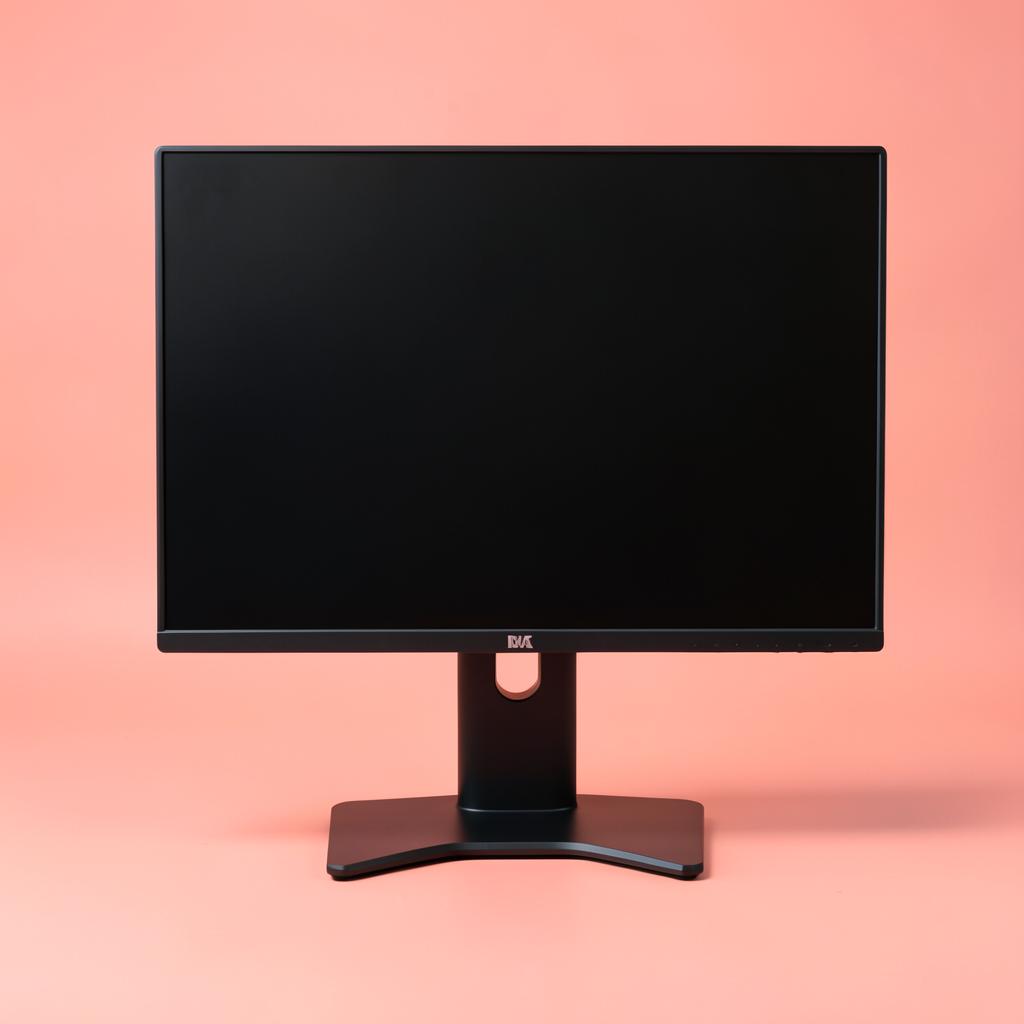
The Dell S2722DC is the one to buy for most people: 27 inches, 1440p, USB-C so one cable carries video and laptop power. If you want two screens instead of one big one, buy two Dell P2723DE panels and use the second one vertically.

Dell S2722DC

Best overall

Dell S2722DC

One-screen setups where the laptop closes and lives on a stand.

A 27-inch 1440p panel with USB-C power delivery, which means a single cable to the laptop for video, data and charging. At this size 1440p is the sweet spot: two full documents side by side, text crisp at 100% scaling, and no display scaling to fight with on a work laptop. Height adjustment is built in, which quietly saves the cost of an arm.

Size
27 in
Resolution
2560 x 1440
USB-C PD
Yes, 65W
Stand
Height / tilt / pivot

What's good

  • One-cable USB-C
  • Crisp text with no scaling
  • Height adjustable
  • Matte

What's not

  • Built-in speakers are poor
  • Not 4K
Dell P2723DE

Best value

Dell P2723DE

Two-screen setups, or anyone who wants one now and one later.

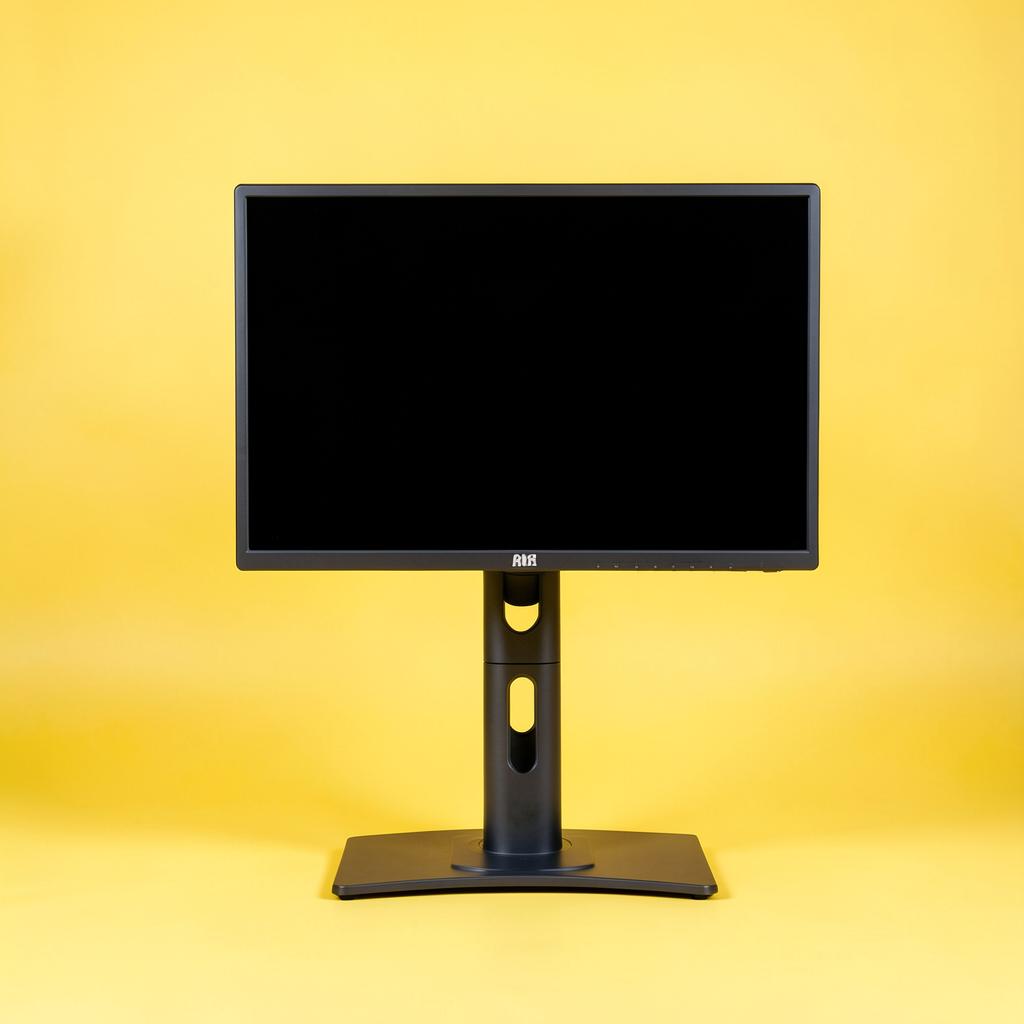
1440p rather than 4K, which is the right compromise at this size — text stays crisp without needing display scaling, and the price lets you buy two. Daisy-chaining over USB-C means the second panel does not need its own run back to the laptop. Turn one of them vertical for long documents and you will not go back.

Size
27 in
Resolution
2560 x 1440
USB-C PD
Yes, 90W
Stand
Height / tilt / pivot

What's good

  • Buy two for the price of one 4K
  • USB-C hub built in
  • Pivots to vertical

What's not

  • Not 4K
  • Plain office styling
LG 34WQ75C-B

Best ultrawide

LG 34WQ75C-B

Anyone who keeps three windows open — chart, notes and a phone system.

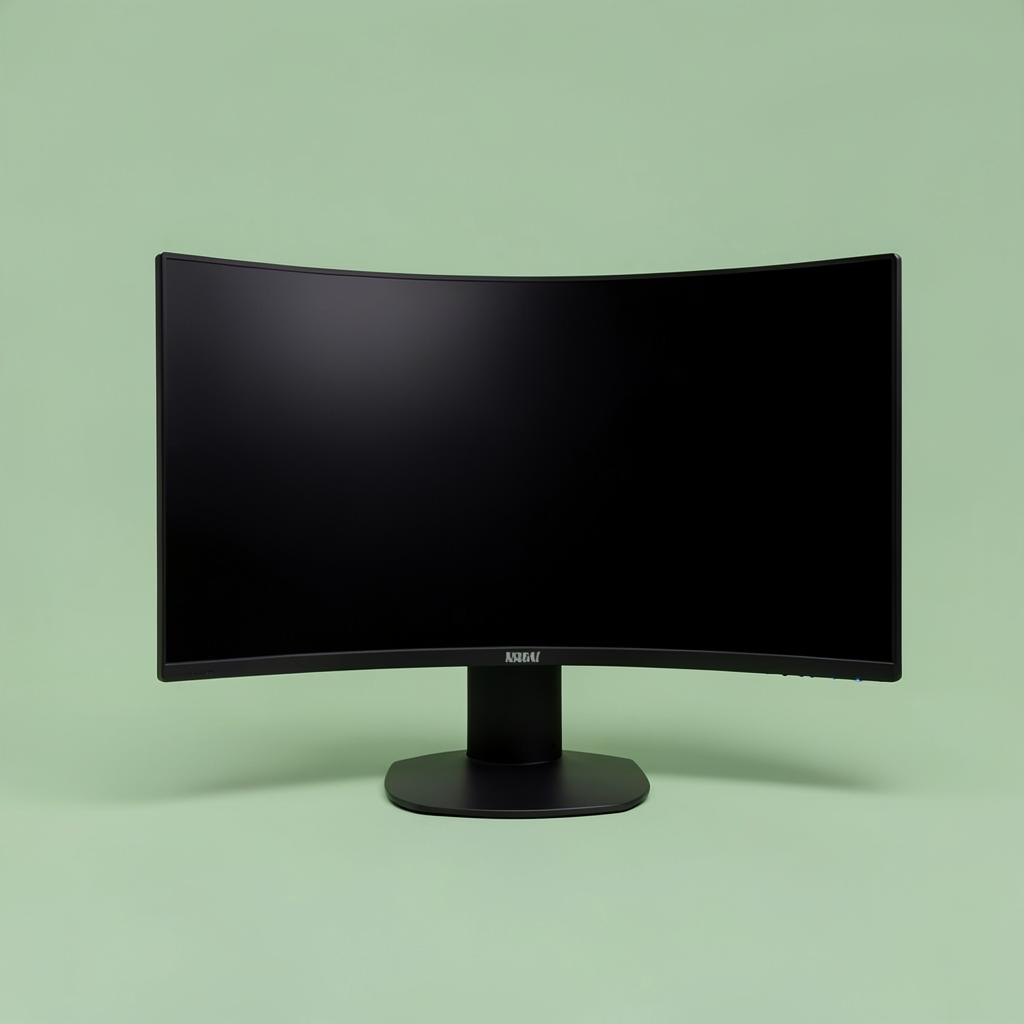
An ultrawide replaces two monitors with one uninterrupted surface, which matters when the third window is always in the way. The gentle curve keeps the far edges readable. The catch is vertical height: it is no taller than a 27-inch panel, so a long document still scrolls the same amount.

Size
34 in ultrawide
Resolution
3440 x 1440
USB-C PD
Yes, 90W
Stand
Height / tilt

What's good

  • Three windows without a bezel
  • One cable
  • Curve helps at the edges

What's not

  • No extra vertical space
  • Wide footprint
ASUS ProArt PA248QV

Best budget

ASUS ProArt PA248QV

Tight budgets that still need readable text and a real stand.

A 24-inch 1920x1200 panel — note the 1200, not 1080. That extra vertical strip is roughly one more paragraph visible at all times, and over a shift of chart review it adds up. Full ergonomic stand at a budget price, which almost nothing else in this range offers.

Size
24 in
Resolution
1920 x 1200
USB-C PD
No
Stand
Height / tilt / pivot

What's good

  • 16:10 gives extra height
  • Full ergonomic stand
  • Matte, accurate panel

What's not

  • No USB-C power
  • Small for side-by-side windows
ASUS ZenScreen MB16ACV

Best portable

ASUS ZenScreen MB16ACV

Travel nurses, hotel weeks, and anyone working from more than one place.

A second screen that lives in a laptop bag and runs off one USB-C cable. It is not a replacement for a desk monitor and the stand is a folding cover, but going from one screen to two in a hotel room is a bigger productivity jump than going from two good screens to three.

Size
15.6 in
Resolution
1920 x 1080
USB-C PD
Powered by cable
Stand
Folding cover

What's good

  • Runs off one USB-C cable
  • Fits in a laptop sleeve
  • Matte

What's not

  • Flimsy cover stand
  • Dim in bright rooms
Dell P2422H

Best for portrait chart review

Dell P2422H

Anyone who reads long documents or charts and wants a tall screen.

It rotates ninety degrees, and a full page of a chart fits on screen with no scrolling. Colors are ordinary and it is only 1080p, so it is not the one to edit photos on, but for reading and typing all day it is the cheapest real upgrade here.

Size
24 inches
Resolution
1920 x 1080
Rotation
90 degrees
Ports
HDMI, DisplayPort, USB

What's good

  • Rotates to portrait
  • Height adjustable stand
  • Low price
  • Easy on the eyes

What's not

  • 1080p only
  • Plain colors

Questions we get

Is one big monitor better than two smaller ones?

For three or more applications, two screens usually win because windows snap into clean halves and you can turn one vertically. For wide documents and long tables, one 34-inch ultrawide wins because nothing is split by a bezel. Pick based on the shape of what you read, not the size number.

Do I need 4K for reading charts and documents?

No, but it is a genuine comfort upgrade. A 27-inch 1440p screen is perfectly readable. A 27-inch 4K screen at 150 percent scaling shows the same amount of content with cleaner text, which helps over long shifts of small type.

Will a monitor charge my work laptop?

Only if it has USB-C with power delivery, and only if your employer allows charging over USB-C. Look for 65 watts or more, and confirm with IT before buying if the laptop is managed.

What about a portable monitor for a second screen?

It works well for travel, hotel rooms and kitchen tables, and it is the right answer if you move constantly. It is too small and sits too low to be a good permanent second screen at a real desk.

Before you buy

Get the height right before you spend anything else. The top of the screen should sit at or just below eye level, roughly an arm's length away. Most people work with a monitor far too low, and the resulting neck angle is the actual cause of what they think is eye strain. A height-adjustable stand or a simple riser fixes it permanently.

If you are running a second screen, turn it ninety degrees. A vertical panel shows an entire page of a document or a full claim at once, and for anyone whose day is reading rather than watching, it is the single best change you can make to a two-monitor setup. Every monitor above except the portable and the ultrawide pivots.

Keep reading

As an Amazon Associate we earn from qualifying purchases. Product availability and prices on Amazon change frequently and anything shown here may be out of date by the time you click. How we pick our recommendations.